Huawei’s operating systems (EMUI and HarmonyOS) are infamous for their aggressive battery management. To save power, the system is designed to force-kill background and foreground apps unless you explicitly tell it not to.
Even if an app is running a constant foreground service, the system will eventually put it to sleep. In this guide, we’ll show you exactly how to configure your Huawei phone settings to keep your essential apps running non-stop. It only takes a minute!
1️⃣ [Essential Step] Turn Off "Manage Automatically" (App Launch)
No matter which Huawei device or OS version you use, you must complete this step first. Otherwise, the system will inevitably kill the app.
- Open the [Settings] app on your phone.
- Go to [Battery] ➡️ [App launch] (or 'Launch').
- Find your app in the list.
- Turn OFF the toggle next to it that says 'Manage automatically'.
- A pop-up menu (Manage manually) will appear. Turn ON all three options and tap OK:
- Auto-launch: Allows the app to start automatically when the phone boots up.
- Secondary launch: Allows the app to be launched by other apps or links.
- Run in background: Ensures the app keeps running even when the screen is off.
2️⃣ Additional Settings by OS Version
After configuring the App Launch settings, you need to exclude the app from 'Battery Optimization' to keep it out of the system's strict power-saving radar. Follow the path that matches your phone's OS version:
📱 HarmonyOS 2.0 or Higher / EMUI 10 to 14 (Modern Devices)
- Go to [Settings] ➡️ [Apps] ➡️ [Apps] (or Apps Management).
- Tap the three dots icon (Menu) in the top right corner and select [Special access].
- Tap [Battery optimization].
- Change the top dropdown filter from 'Not allowed' to [All apps].
- Find your app, tap on it, and select [Don't allow], then save.
- (💡 Note: Choosing "Don't allow" means you are NOT allowing the system to optimize/restrict the app, which guarantees unlimited background execution!)
📱 EMUI 9.X
- Open [Settings] and type "Battery optimization" in the top search bar to access the menu.
- Change the dropdown filter to [All apps].
- Select your app and choose [Don't allow].
📱 EMUI 5.X to 8.X (Older Devices)
- Open [Settings] and type "Ignore battery optimization" in the top search bar to access the menu.
- Change the dropdown filter to [All apps].
- Select your app and set it to [Allow].
3️⃣ [Bonus Tips] Double-Lock Your Apps from Being Killed
If you want 100% certainty that your app will never close, apply these two extra tricks:
- Lock the App in Recent Tasks: Swipe up from the bottom of your screen to open the 'Recent Apps' screen. Swipe down slightly on the app's preview card. A lock icon will appear at the top of the card. Once locked, the app will stay open even if you tap the 'Clear All' (trash bin) button.
- Keep Wi-Fi/Data Connected Sleep Mode: Go to [Settings] ➡️ [Battery] ➡️ [More battery settings], and make sure [Stay connected when device sleeps] is turned ON. This prevents the network from disconnecting when the screen turns off, which often causes background apps to malfunction.
📌 Summary of Huawei Background Settings
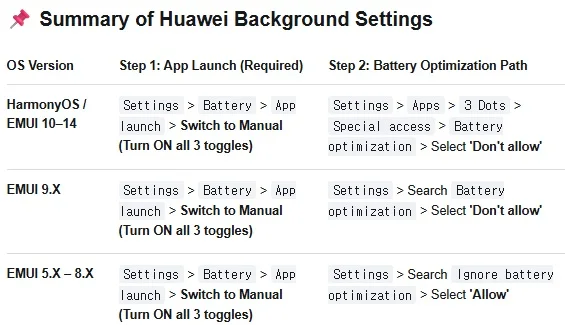
While Huawei's battery management is strict, configuring these settings just once will ensure your apps run smoothly without annoying interruptions or missed notifications.
Hope this guide helps you get rid of background app headaches! If you have any questions, feel free to leave a comment below. Thanks for reading!
댓글 0